

 Brand identity
Vectorize logos
Convert your logo from PNG to SVG for business cards, cups and packaging, with colors and sizes you can edit.
Vectorize my imageVectorize PNG, JPG and WebP images to SVG and EPS with powerful AI. Vectorize logos, illustrations and print artwork with free previews and editing.
From image to vector with VectorEasy
Turn pixels into editable curves, zoom in on details and adjust your artwork for free. Download SVG or EPS to continue in your editor.
Choose a PNG, JPG or WebP with clear outlines. AI vectorization turns the pixels into editable curves and shapes.
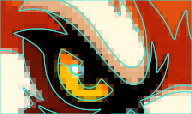
Compare the original with the vector, zoom in on lettering and details, and make adjustments in the preview. Viewing and editing are free.

Choose SVG or EPS and open the file in your editor. Continue adjusting shapes and colors to finish your logo, illustration or print design.
Understand the difference
Vectorization turns pixels into lines, curves and shapes you can edit.
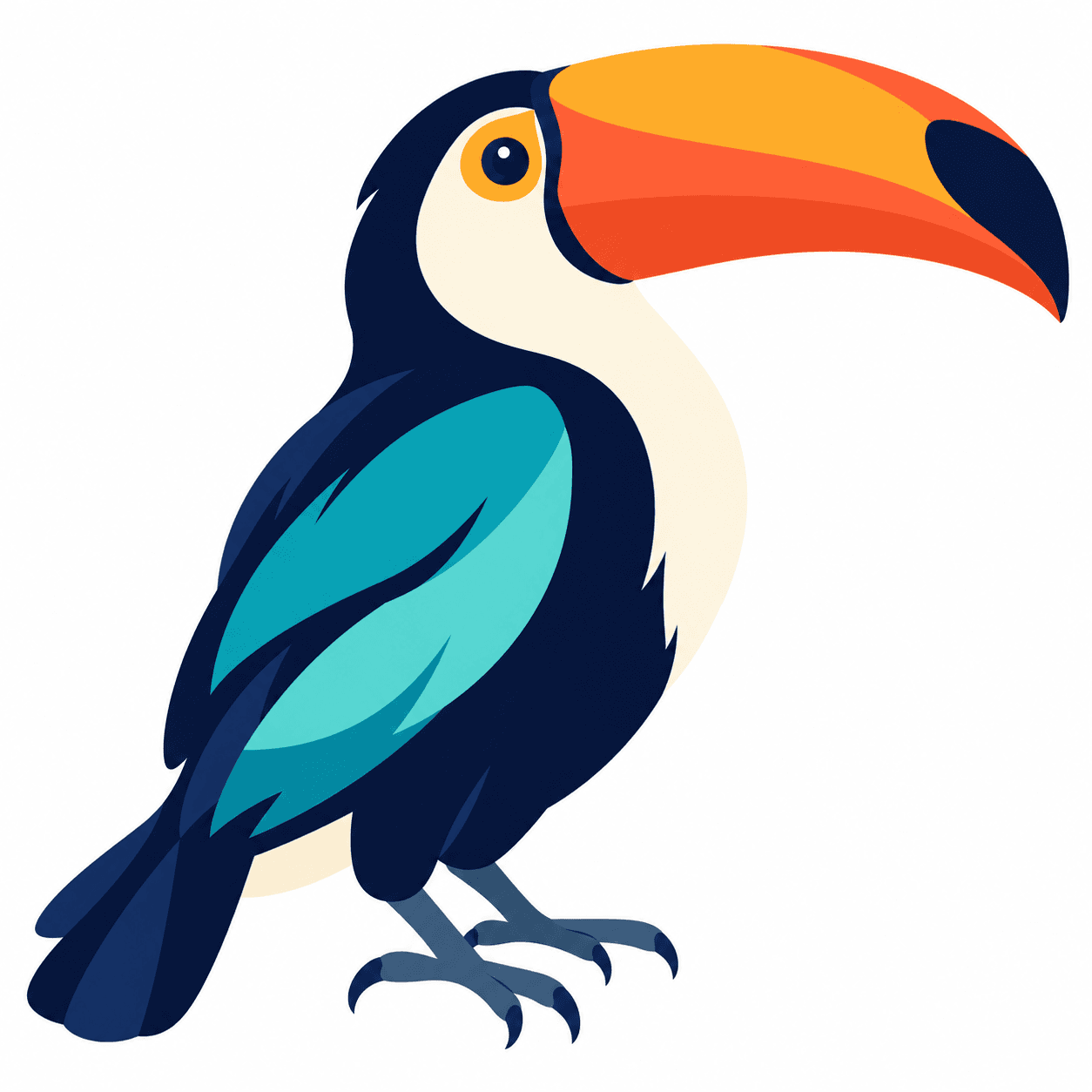
One design. More possibilities.
From the logo on a coffee cup to an illustrated sticker, see how converting PNG to SVG helps bring your artwork to everyday products and printed materials.
Brand identityConvert your logo from PNG to SVG for business cards, cups and packaging, with colors and sizes you can edit.
Vectorize my image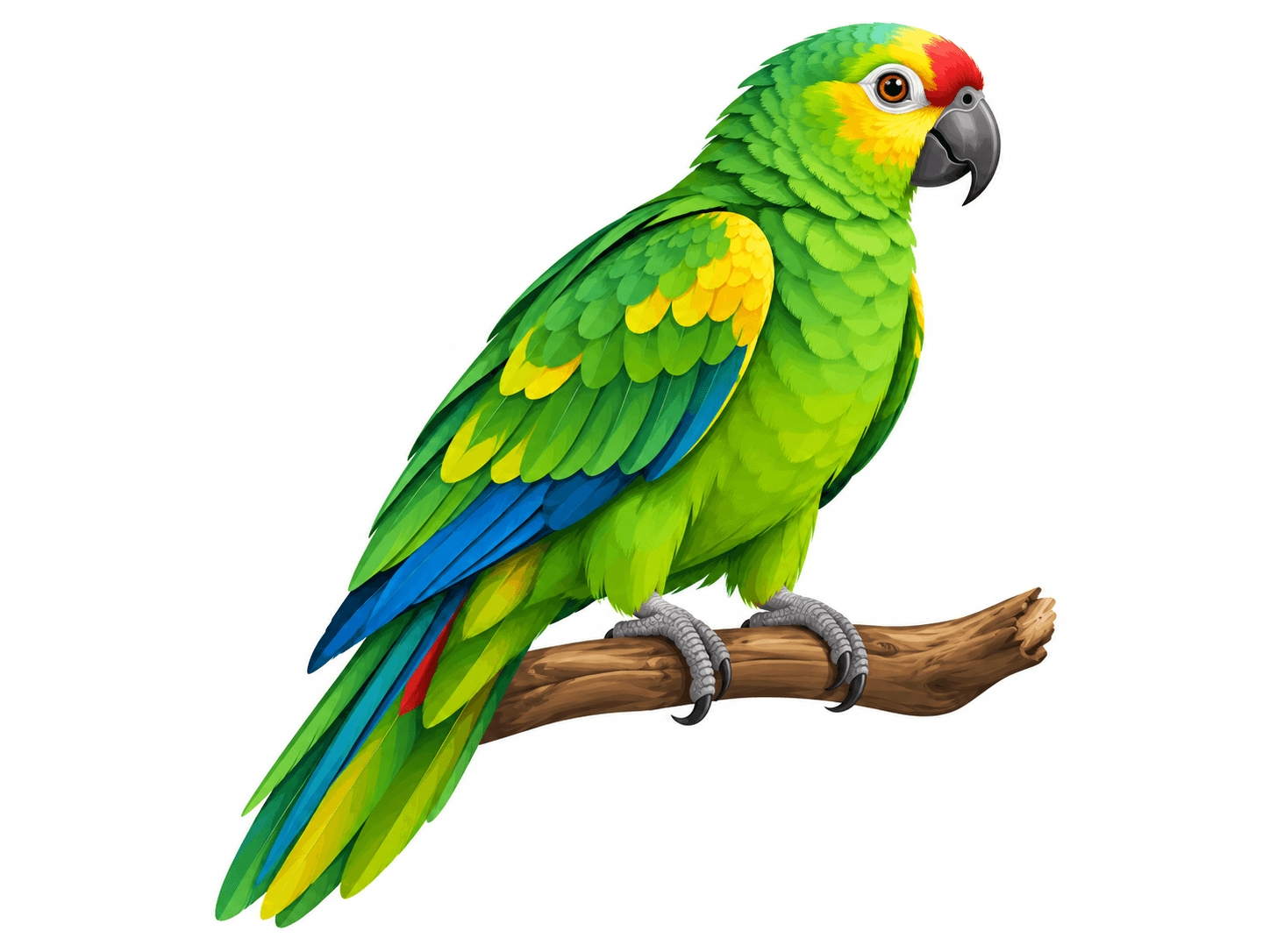 Drawings and stickers
Convert drawings from PNG to SVG for stickers and posters. Adjust colors and outlines, then reuse the artwork in new designs.
Vectorize my image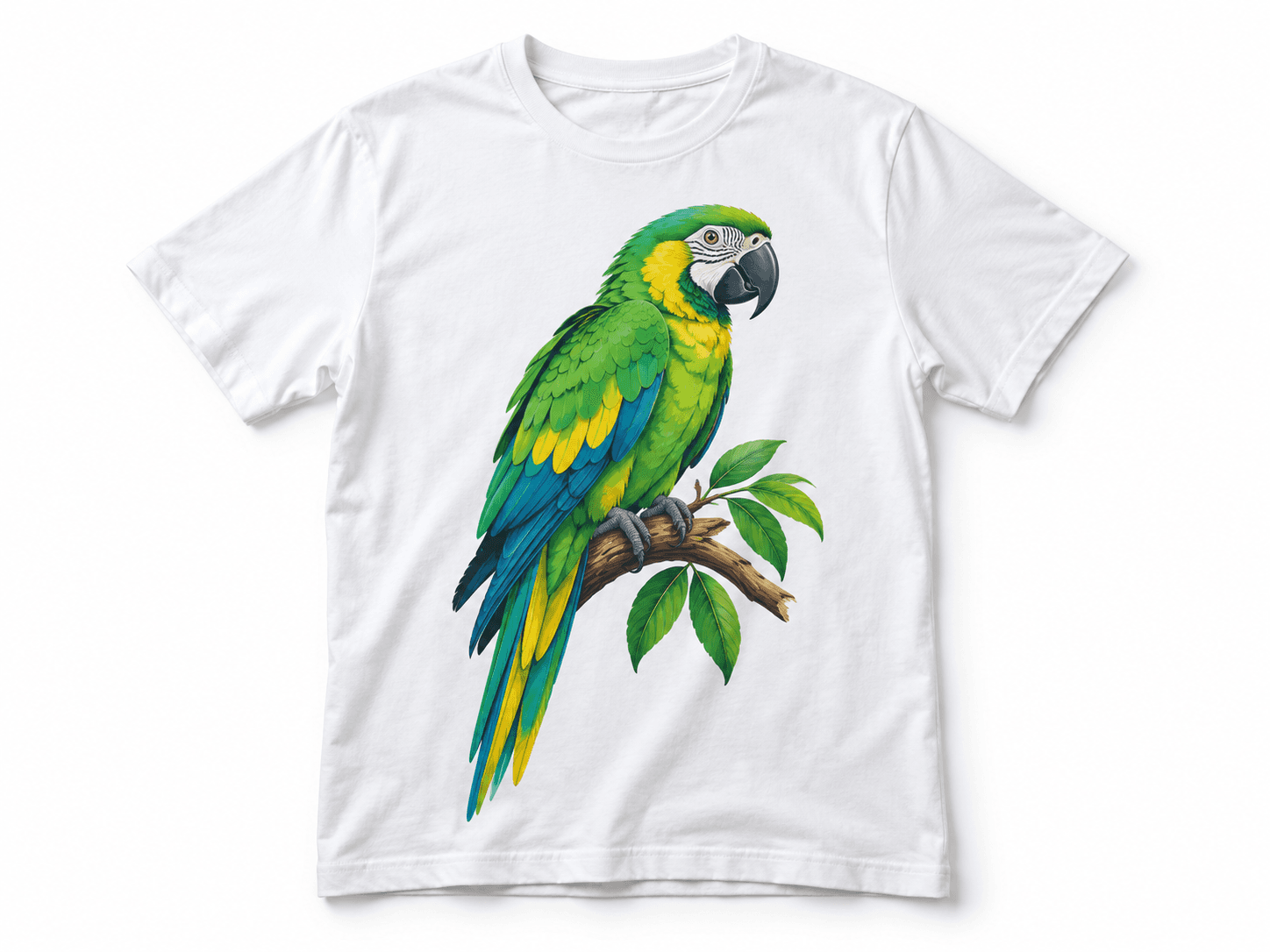 Prints and textiles
Prepare prints for T-shirts, tote bags and uniforms. Adjust your SVG artwork and review the details before sending it to print.
Vectorize my imageChoose the right format
Posting a photo or preparing a logo for print? See when to use each format and when to convert PNG to SVG.
Use PNG or JPG for photos and posts at the right size. They preserve the original image’s textures, lighting and detail.
Convert PNG to SVG to enlarge your artwork while keeping outlines sharp. Edit colors and prepare logos, prints and cutting designs.
Before uploading to VectorEasy
A good SVG starts with the image you upload. Before converting PNG to SVG, choose the file that shows your artwork most clearly.
Use the original PNG or JPG. Screenshots and repeatedly shared files can blur details that will become part of the tracing.
Upload the design on its own. A photo of a shirt also includes folds, shadows and the texture of the fabric.
Look at letters, accents and enclosed spaces. If they are blurry, find a larger version before vectorizing.
From SVG to your editor
Open your SVG or EPS in an editor that supports that format. Adjust shapes, colors and outlines to finish your artwork. For Figma, use SVG.
Download a sample SVG

After opening, check the colors and outlines of your artwork.
Answers for your project
Learn about file formats, free editing and preparing logos, illustrations and print artwork.
Upload your PNG, review the tracing in the preview and make any necessary adjustments. Then download the editable SVG to resize the artwork and work with its shapes and colors in a vector editor.
Yes. The input formats are PNG, JPG and WebP. Choose the original file with readable edges and lettering. A heavily compressed JPG may contain artifacts that will also be interpreted during vectorization.
You can download the result as editable SVG and EPS. SVG is an option for the web and editing in different programs; EPS is used in design and print workflows. Choose according to your editor and the intended use of your artwork.
Yes. Logos with clear outlines are good candidates for vectorization. Review lettering, enclosed spaces and small symbols in the preview. Use free editing to check the result before using the vector in your materials.
Yes. Upload the artwork separately from the product photo and review outlines, colors and final dimensions. SVG or EPS can serve as a starting point for preparing the print; confirm the required format and adjustments with your production specialist.
Vector curves stay sharp when enlarged. Fidelity to the original depends on image quality and tracing: blurry lettering and very small details may change. Check these areas in the preview before downloading.
Yes, but lighting, shadows and textures may create many shapes or a more simplified appearance. Logos, drawings and illustrations with clearly defined areas usually produce vectors that are easier to edit.
Open the file in an editor and check whether you can select individual shapes, curves and paths. A PNG or JPG simply embedded in an SVG is still made of pixels and retains the limitations of its resolution.
SVG can be used in all four editors. For EPS, use a compatible editor such as Illustrator or CorelDRAW. When opening the file, review colors, fonts and effects, which may be interpreted differently between programs and versions.
Yes. You can view the result, zoom in on details and make adjustments for free before downloading. The vector file is delivered in SVG and EPS.
The time varies with resolution, the number of colors and the complexity of the outlines. Simple logos and detailed artwork require different amounts of processing; always review the result before finishing.
Choose a PNG, JPG or WEBP image up to 10 MB to open the editor, vectorize, adjust the result and download the SVG.
PNG to SVG with VectorEasy
From PNG to SVG, discover new possibilities for logos, illustrations and print artwork. Choose an image to get started.
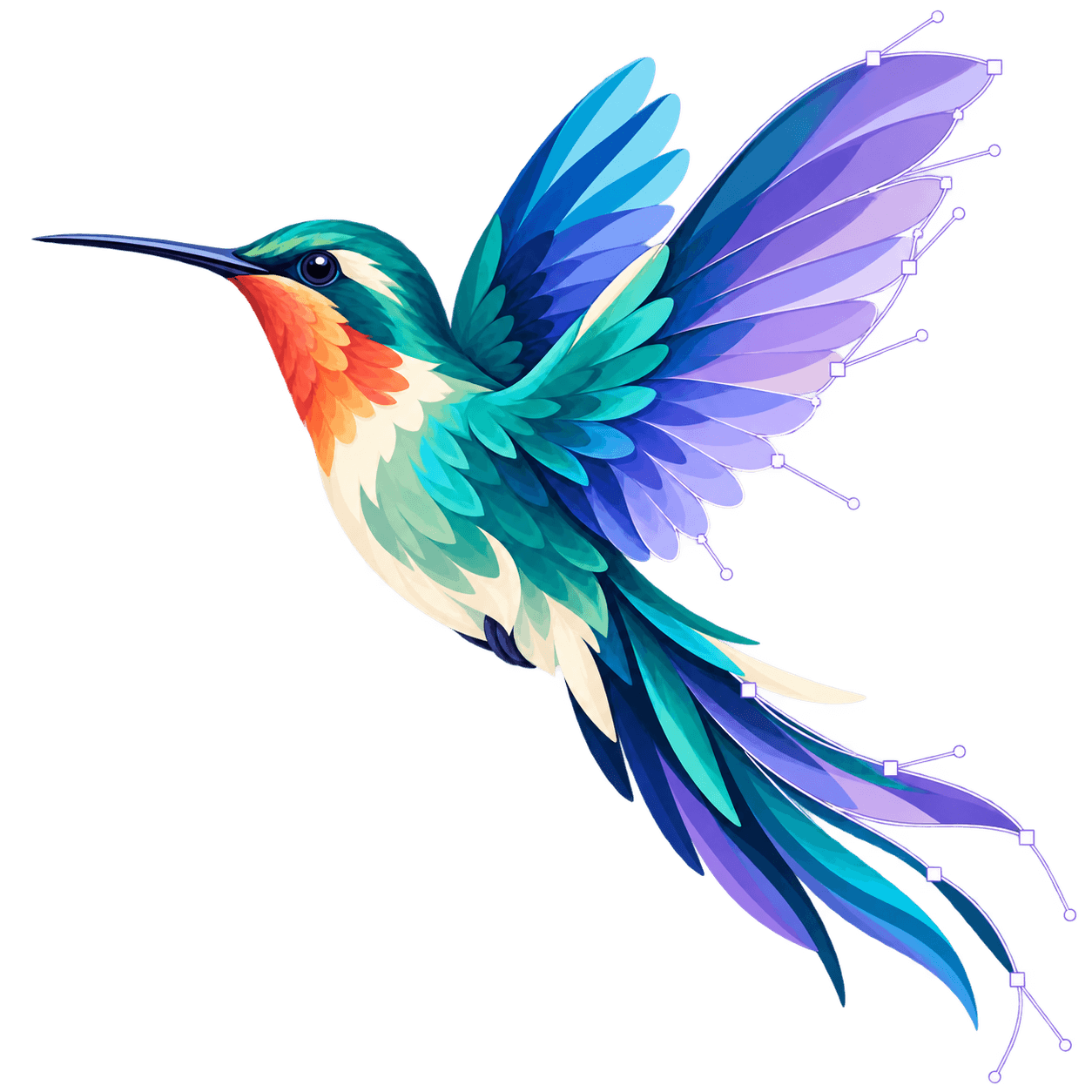 Curves and control points